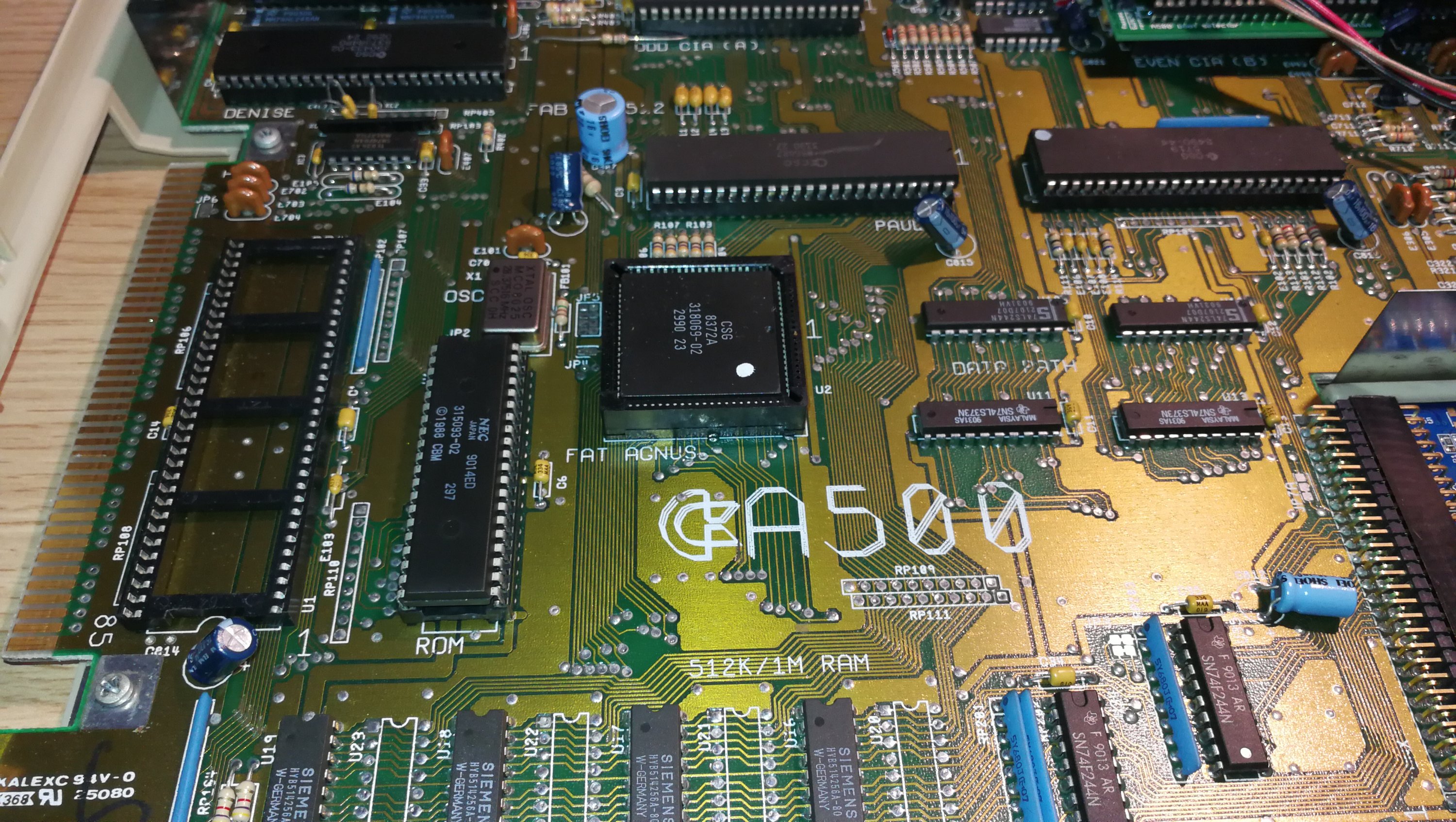


Having been collecting old computers and consoles for many years now I’ve also managed to amass quite a collection of controllers and joysticks along the way. Many of them are 40 years old or more and in varying states of repair so I often find myself needing to test them out. I could of course just load up a game of Space Invaders and try one out or even use one of a handful of ‘Tester’ programs on my C64 that can test joystick inputs. However both options would create extra wear and tear on the ports of my old girl.
Alternatively I could build a Joystick Tester and give myself the perfect excuse to conduct some DIY electronics tinkering. Not only that but PCBWay reached out to me and offered to foot the bill in exchange for me doing a write-up of my experience – which I would have done anyway. The stars had aligned for me for once…

Whilst I’m fairly competent at soldering (so long as its not SMD stuff) I haven’t got much of a clue about designing circuit boards as I’ve not progressed beyond breadboards as of yet. However I am aware of PCBWay’s ‘Retro Stuffs’ community – a huge repository of community created PCB’s for all manner of retro computing projects, so I had a search around on there.
I found a number of joystick testers but decided to go with this one: Joystick Tester for Commodore & Atari.
It’s compact, operates off a single button cell battery which helps keep it compact, plus it’s all ‘through hole’ soldering with no SMD components needed. One day I will conquer SMD stuff – but that day isn’t now.

Joystick Tester
The PCBWay ordering process looked a little intimidating at first as a screen full of options appears when you go to add it to your cart. However there are tooltips for each one to help you decide what to choose. For a simple project such as this one you can basically just leave everything on the default settings and you are good to go.
I did opt to change the board colour to black with white silk-screening (writing). The pricing was a nice surprise too – just $5 (pricing is in USD) for 5 PCB’s so I have 4 spare to make extras… or in case I screw up!

Joystick Tester PCB x5
Shipping options for my order ranged between $4 for economy up to $25 for DHL express. I opted for the latter so my order was with me 7 days later. Pretty quick considering the boards are made to order and came all the way from Shenzhen in China. I was able to track the progress of both the PCB’s manufacture and delivery from the Orders page on their website.
In all honesty if I was paying for the boards myself I would have chosen the cheapest option and just been patient!

Side A
The quality of the boards I received from PCBWay were spot on and they were carefully packaged in foam inside a cardboard box to protect them in transit.

Side B
This particular PCB is double-sided with both an ‘A’ and ‘B’ side to it and there are 2 sets of solder pads to short depending on which you choose. These swap the left and right signals so the LED’s still light up logically regardless of which side you choose to be the ‘top’ one.
Parts Required
Besides the PCB I also needed a few extra components, some of which I had lying around and others I needed to order.
I’ve linked both Amazon (faster delivery) and AliExpress (cheaper) options so if you want to order some yourself you can choose what suits you. Some of the links below are affiliate links. If you buy through them, it helps support the site at no extra cost to you.
| Part | Notes | Buy |
|---|---|---|
| 6x Round Colour LED’s | You can get an assortment of hundreds for just a few pounds | AliExpress · Amazon UK |
| 1x D-SUB 9 Pin Male Right Angle Connector | Need a male connector as joystick plugs are female | AliExpress · Amazon UK |
| 1x CR 2032 or CR 2025 3V Lithium Battery | Either type will work fine and fit in the holder | AliExpress · Amazon UK |
| 1x CR 2032 Battery Holder | Another part usually sold in small quantities cheaply | AliExpress · Amazon UK |
| 1x 150 Ohm 1/4 watt Resistor | Resistance value changes LED brightness – buy an assortment | AliExpress · Amazon UK |
Once I had all the components delivered it was time to build my Joystick Tester!

All the bits needed for the project
I decided that I wanted Side ‘A’ uppermost so began populating the board with my components, starting with the DB9 port and the battery holder. The DB9 connector needed quite a bit of solder applying to the two posts as the holes are quite large but with my soldering iron set to 400C it only took a few seconds to secure it in place.

Components in place waiting to be soldered
With those secured I added the LED’s and resistor next, pushing the legs through the holes and bending them over to keep them in place until I soldered them. The PCB helpfully has the Anode (positive) wire marked on it so it was easy to orient them. Remember the anode is always the longer of the two wires on an LED.

Mostly soldered…
Once everything was soldered it was simply a case of snipping the legs off with some side cutters to tidy things up.
I also had to join two sets of pads together using some solder to configure the left/right sticks with the corresponding LED’s on side A.

The Finished Joystick Tester
Completing the build probably took about ten minutes tops and I’d rate the difficulty as very easy. With a clean easy to follow PCB design, large components with through-hole wires that are easy to solder, it’s an ideal beginner project.
Testing
With soldering complete and my tools tidied away it was on to testing next! I popped a 3V CR2025 coin cell into the battery holder and my trusty ZipStick into the DB9 port to see how it was holding up.
Testing a joystick couldn’t be any simpler. Just press the buttons and waggle the stick around and make sure the corresponding LED’s on the tester illuminate. Thankfully they did which meant that my 40 year old ZipStick was still in good health and also that my Joystick Tester had been correctly assembled and soldered!
You can test the main fire button and each of the standard Up, Down, Left and Right directions. You can also test the diagonals which should light up the corresponding 2 LED’s (Left + Up, Up + Right, Right + Down and Down + Left). The blue LED is for testing joysticks with a second fire button but I couldn’t get my hands on one at the time of writing this.
It was a really fun little project that kept me occupied for an entire evening (it takes infinitely longer to write up a post about doing something than actually doing it!)
Once again I would like to thank PCBWay for the free PCB and if you would like to build your own tester you can pickup the board I used from PCBWay here: Joystick Tester PCB.