
Lyonsden Blog

Category - Gaming

Upgrading my Amiga A500 to 1MB Chip RAM (1MB Chip RAM Mod)

1MB Chip RAM Mod

Introduction

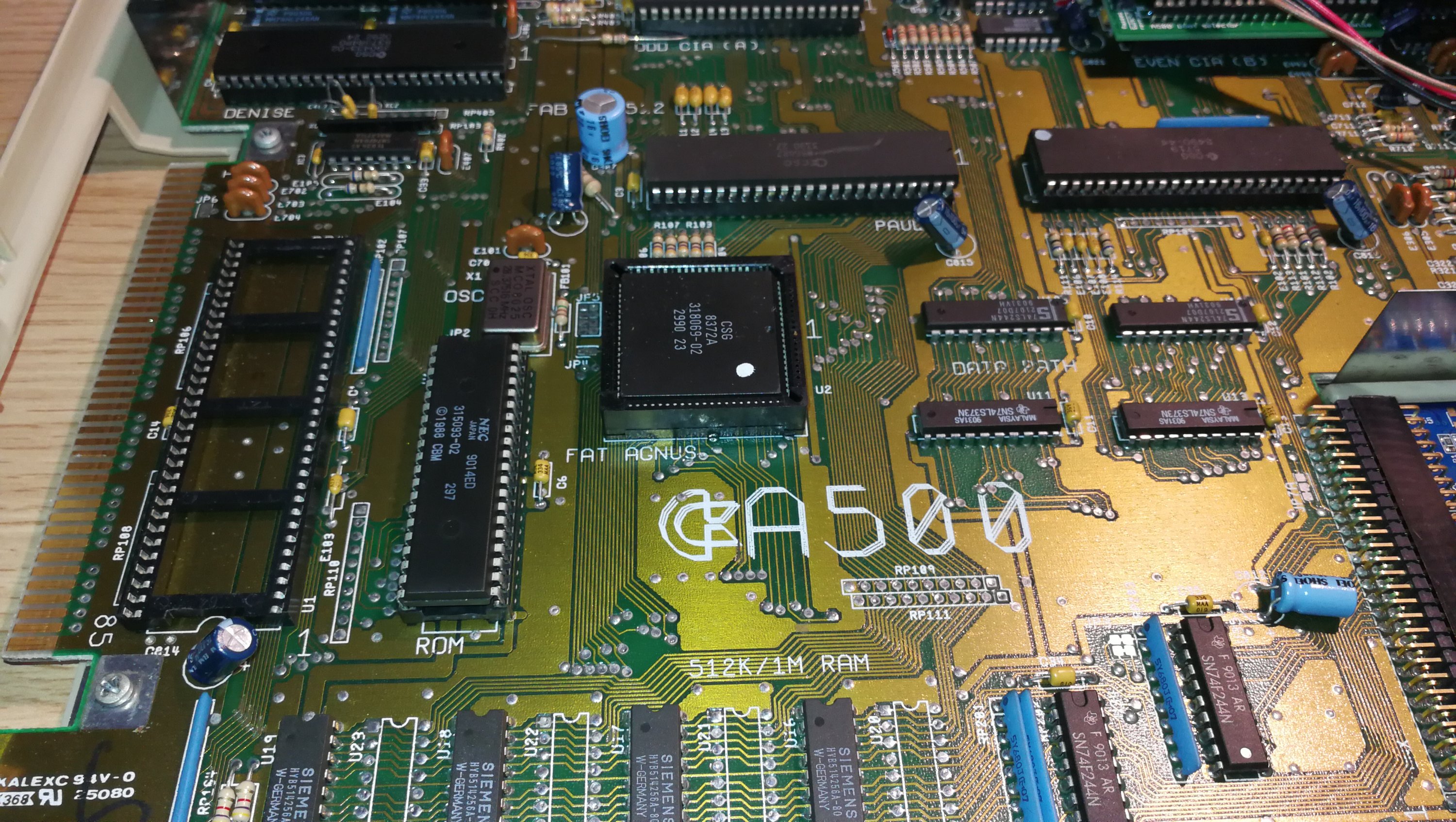
My A500 motherboard is a Revision 6A which means that it is quite a straightforward modification to get a 512K trapdoor expansion to be seen as additional Chip RAM. The 6A comes with the Enhanced Chip Set (ECS) variant of the Agnus chip called ‘Fat Agnus’ which is able to support up to 1MB total Chip RAM. This 1MB Chip RAM Mod will combine the 512k onboard RAM with the 512k Trapdoor RAM to give 1MB total Chip RAM, just like you get in the later A500 Plus models.

Chip RAM is needed for stuff like graphics as it is the only memory that the custom Amiga chips are able to access and 512k goes nowhere! Opening Workbench windows, increasing the screen resolution, adding a wallpaper all gobble up precious Chip RAM. The popularity of WHDLoad as a means to run old Amiga floppy games off a hard drive is also a problem for 512k machines as most of the games require 1MB of Chip RAM to function.

Checking the Amiga board revision

You can check what revision your Amiga is by opening it up and removing the floppy disk drive. The revision number will be etched into a small area underneath along with other interesting information such as the serial number and when it was made. It looks like my board was designed in 1988 (30 years old this year!) but that it might have been assembled in 1989/90 going by the serial number sticker?


1MB Chip RAM Mod

Revision 6A motherboard confirmed


1MB Chip RAM Mod

Here’s a screenshot from SysInfo confirming the presence of an ECS Agnus chip – needed for this mod.

Under the knife!

The first thing to do is cut the small trace between the lower two pads (2 & 3). I used a small craft knife but any similarly sharp knife should do the job. Be very careful not to slip with the knife as there are several other tracks on the motherboard that you do not want to damage! To check that you have successfully cut the track you can use a multimeter – there should be no continuity between the two pads if the track has been cut properly.


1MB Chip RAM Mod

JP2 – Track cut between the lower 2 of the 3 solder pads with a sharp craft knife.

Bridging the gap

After successfully cutting the track between pads 2 and 3 the next task is to solder the top two pads (1 and 2) together. I found the easiest way to do this was just to keep adding blobs of solder to one of the pads until there was enough to drag across to the other pad and bridge the gap.


1MB Chip RAM Mod

JP2 with pads 1 and 2 soldered together.

The shortcut

Traditionally the next part of this modification required cutting a track on JP7A but just by chance I stumbled across an advert for a 512K Trapdoor expansion on eBay that bypasses this requirement completely. This particular RAM expansion has a series of jumpers on it that you can use to enable/disable a number of features including using it to expand Chip RAM. It also features a clock with battery backup so it’s a very complete little package. Anyway, in order to have the 512k of RAM added to the pool of Chip memory you need to remove the blue jumper – this basically has the same effect as cutting the track on JP7A.


512K RAM Expansion

512K RAM Expansion with blue jumper disabled to enable it to be seen as Chip RAM.

Testing

The final step (after putting everything back together of course) is to turn on the Amiga and check that it now has a full 1 megabyte of Chip RAM.  Easiest way to check for sure is to load up good old SysInfo and go to the Memory Information screen and you should see 1.0MB Chip RAM displayed. Job done!


SysInfo 1MB Chip RAM

SysInfo screen confirming 1MB of Chip RAM 🙂

Planet X2 a New Commodore 64 RTS game in 2017!

Planet X2

How cool is this? It’s like being back in the 80’s! Planet X2 is a brand new Commodore 64 game that has just been released by “The 8-Bit Guy” (of YouTube fame) – on 5.25″ Floppy Disk no less! Also included is a cassette tape featuring additional music for the game.

Think this might actually be the first (and therefore only) RTS for the Commodore 64! If you are in Europe you can get hold of a copy here.


Planet X2

Planet X2 Front Cover


Planet X2

Planet X2 Back Cover


Planet X2

Planet X2 Contents

Moga Pro Review – PS Vita killer?

Moga Pro Review

Today I finally received my Moga Pro pre-order from Game and I’m very happy to say it was worth the wait!


Moga Pro Review

Moga Pro Box

Just in case you’re not aware of what one is – it’s a bluetooth hardware gamepad that works with Android phones and tablets to give you a more ‘console like’ experience and overcome the problems of using touch screens to play.

Moga Pro Review

Moga Pro Box (flap open)

The devices retails for £40 and comes in a very attractive retail box with a fold out magnetic front flap that shows the device in action with phones, tablets and even a TV. Inside the box you get the pad itself, a plastic tablet stand, USB charging cable, instruction booklet, quick-start guide, QR code to download the driver for your device and a code to download a free copy of N.O.V.A. 3 from the Gameloft’s own store.

Moga Pro Review

Moga Pro Box (back)


First thing you need to do is charge the pad up as it is powered by an internal rechargeable battery. An LED flashes yellow to indicate the unit is charging and extinguishes when fully charged. While the pad is charging you can scan the QR code with your phone which will take you straight to the MOGA Pivot app which you need to install on your phone or tablet.


Moga Pro Review

Moga Pro Gamepad

Once the gamepad is fully charged you can move onto the next stage which just involves running the Pivot app and following the simple on-screen instructions to pair the pad with your phone. It will also give you an opportunity to get a free copy of Pacman*, redeem your Nova 3* game code and register for updates. I received an email a few minutes after registering with instruction on how to actually get the game. The whole process couldn’t be simpler and my pad paired and worked first time with no issues at all. As well as letting you setup your pad the Pivot app also acts as a central hub where you can see all of your installed Moga Pro compatible games and also browse and download new ones.

Moga Pro Review

Moga Pro Box Contents

*In order to install both of these games you have to allow installs from Unknown sources on your phone. The option can be found in Settings>Security>Unknown sources. This is because the apps are being downloaded from outside the Google Play store.

Moga Pro Review

Moga Pro with Galaxy Note 2


The build quality seems to be first-rate and the design has clearly been based on the XBox 360 pad as the dimensions, stick layouts, triggers and buttons are all virtually identical, even the XYAB letters on the buttons are same! This is fine by me – the 360 pad is by far the best I’ve ever used on any system and the Moga Pro is just as comfortable and precise to use. Where it differs from the 360 pad is that it incorporates a flip out spring-loaded arm which holds your phone in place securely while you game. The arm dimensions are extremely generous so don’t worry about your phone fitting – I have a Galaxy Note 2 and it fitted comfortably even with the phone in a Spigen case! It feels perfectly balanced once the phone is in place and very little effort is required to hold the whole thing steady. It could easily have been top-heavy and tiring to hold but it’s obvious a fair bit of thought gone in to the placement of the arm and it works well.

Moga Pro Review

Moga Pro phone holder arm


I tested the game with a copy of Gameloft’s Modern Warfare Combat 4: Zero Hour. This is a Moga Pro enhanced game which basically means it fully supports all the features of the Gamepad. The Modern Combat games have always looked and sounded the part but been seriously let down in the control department with the virtual sticks and touch screen controls being awkward at best and a downright hindrance at worst. Not to mention that you’ve got your thumbs obscuring a good chunk of the screen. The Moga Pro was a revelation – before I knew it an hour had passed and I was really enjoying myself. The sticks are really responsive, dead-zones almost non-existent and lining up head shots quickly became second nature. Familiar Call of Duty console button configurations also helped too, with bumpers launching grenades, X to reload, Y to switch weapons and so on.

I have a Playstation Vita which is a really great handheld system, the best I have ever owned in fact. However having experienced the Moga Pro coupled with my Galaxy Note 2 I’d have to say it’s a better gaming experience than the Vita. The screen is bigger, the whole thing is easier and much more comfortable to hold and the full-size pad and analogue sticks really are of console quality. The final kicker is that at just £4.99 the Gameloft COD clone is a darn sight cheaper than Black Ops DeClassified too!

Some more images…

Moga Pro Review

Moga Pro with Galaxy Note 2 – close-up of phone holding grip


Moga Pro Review

Moga Pivot app – viewing installed games


Moga Pro Review

Moga Pivot app – Congratulations!


Moga Pro Review

Moga Pro & XBox 360 Gamepad Comparison


Moga Pro Review

Moga Pivot app – browsing for new games


Moga Pro Review

Moga Pro – Modern Combat Control Layout